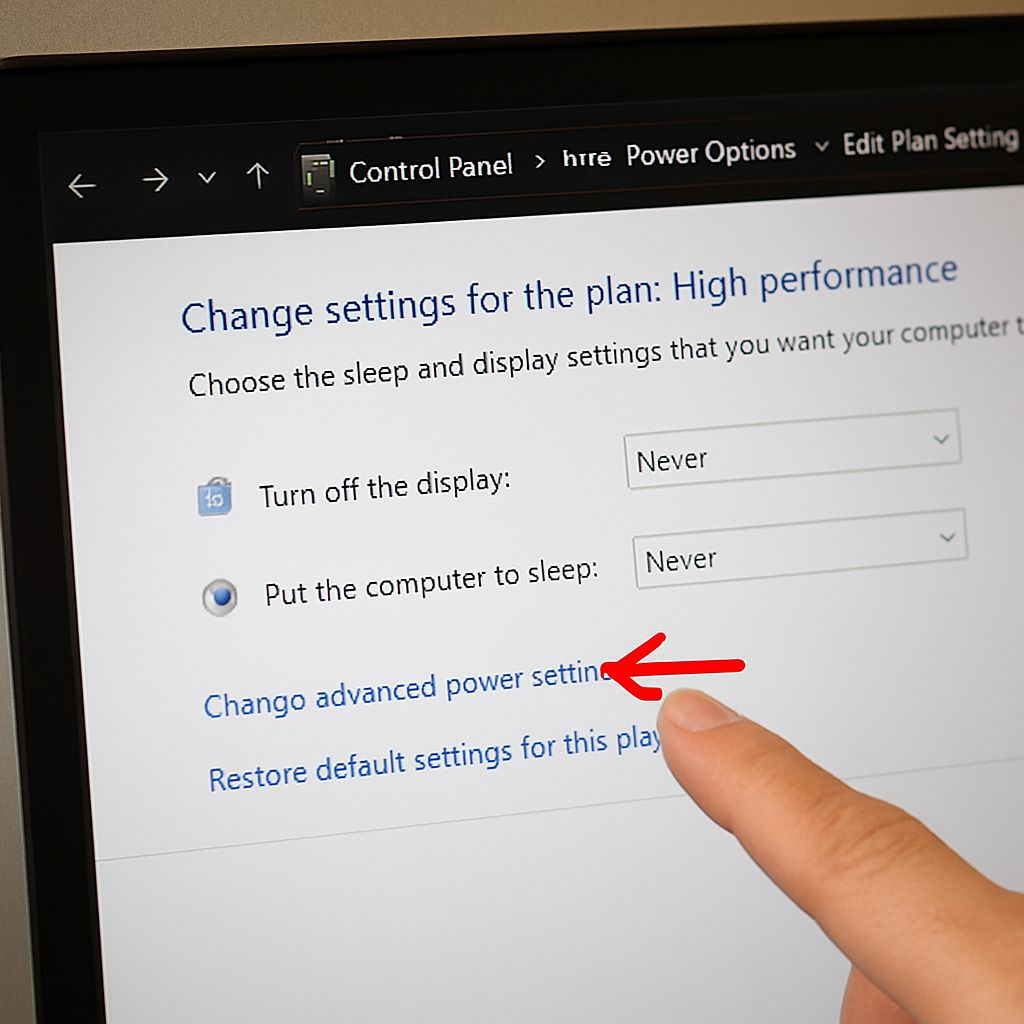
The ability to keep computer from sleeping is a practical need for anyone running long downloads, remote desktop sessions, presentations, or batch processing jobs. Every major operating system has a built-in sleep setting, but changing it through the control panel affects all future sessions, which is often not the goal. More targeted methods let users prevent sleep temporarily without altering permanent system preferences.
Options to keep laptop from sleeping range from native power settings to third-party utilities, and the right choice depends on how long and how often the need arises. People who want to know how to keep your computer from sleeping without installing software will find built-in solutions sufficient for most situations. Those who need to know how to keep PC from sleeping on demand, for a single session, will benefit from lightweight command-line approaches. Understanding how to stop your computer from sleeping cleanly, without creating a persistent setting that gets forgotten, is the most practical goal.
Built-In Methods That Prevent Sleep Without Third-Party Software
On Windows 11 and 10, navigating to Settings, System, Power and Battery, and then Screen and Sleep allows the sleep timer to be set to Never. This takes under 60 seconds and applies until manually reversed. For session-specific control, the PowerShell command powercfg /change standby-timeout-ac 0 sets the sleep timeout to zero on AC power. Reversing it takes a single command with the desired timeout in minutes. A simpler temporary method uses the built-in Caffeine or PowerToys utilities, both from Microsoft, to prevent sleep for a defined duration without touching system settings.
On macOS, System Settings, Battery, Options includes a checkbox to prevent automatic sleep when the display is off. The caffeinate terminal command keeps a Mac, or MacBook, awake for a user-defined period. Running caffeinate -t 7200 prevents sleep for exactly two hours and exits cleanly, leaving no residual setting. This is the cleanest method for session-specific use and requires no installation.
On Linux systems, the systemctl mask sleep.target suspend.target hibernate.target hybrid-sleep.target command disables all sleep states system-wide. Unmasking with the corresponding unmask command reverses it. For desktop environments using GNOME, the Settings, Power menu provides a graphical toggle that takes effect immediately.
Presentation mode on Windows, activated by pressing Win + P and selecting Duplicate or Extend, automatically suppresses sleep on most devices. This works because the system assumes an active display connection implies an active session. The same logic applies to any full-screen video playback, which is why streaming video rarely triggers sleep even with aggressive power settings.
Third-party tools like Caffeine for Windows, Mouse Jiggler as a hardware device, or Stay for macOS offer scheduled prevention, system tray access, and per-application sleep suppression. Mouse Jiggler hardware plugs in via USB and sends a periodic signal that registers as user activity, preventing sleep on any OS without software installation. It is useful in locked-down environments where software installation requires IT approval.
Checking the current sleep timeout before changing it prevents unintended permanent changes. On Windows, running powercfg /query in PowerShell shows all current power scheme settings. On macOS, pmset -g in Terminal lists the active power management configuration. Documenting the original values takes 30 seconds and makes reverting straightforward.