How to Stop My Computer from Sleeping: All Methods Explained
Knowing how to stop my computer from sleeping during active tasks — file transfers, video renders, downloads — prevents unnecessary interruptions without requiring a complete review of power settings. The question of how do I stop my computer from going to sleep has different answers depending on whether the goal is a temporary override for a single session or a permanent setting change. Similarly, the steps for how to stop computer from going to sleep differ between Windows 10, Windows 11, and macOS, and differ again between desktop and laptop configurations. The specific issue people face when trying to figure out how to stop my computer from going to sleep is usually that the setting reverts after a policy update or operating system reinstall. Fully understanding how to prevent your computer from sleeping means knowing both the graphical settings paths and the command-line methods that persist across updates.
This guide covers both the quick-fix options for temporary situations and the permanent setting changes for each major operating system, plus the command-line tools that override sleep even when group policy or power plan restrictions apply.
Windows: Power Settings, Registry, and Command-Line Methods
Power Plan Settings in Windows 10 and 11
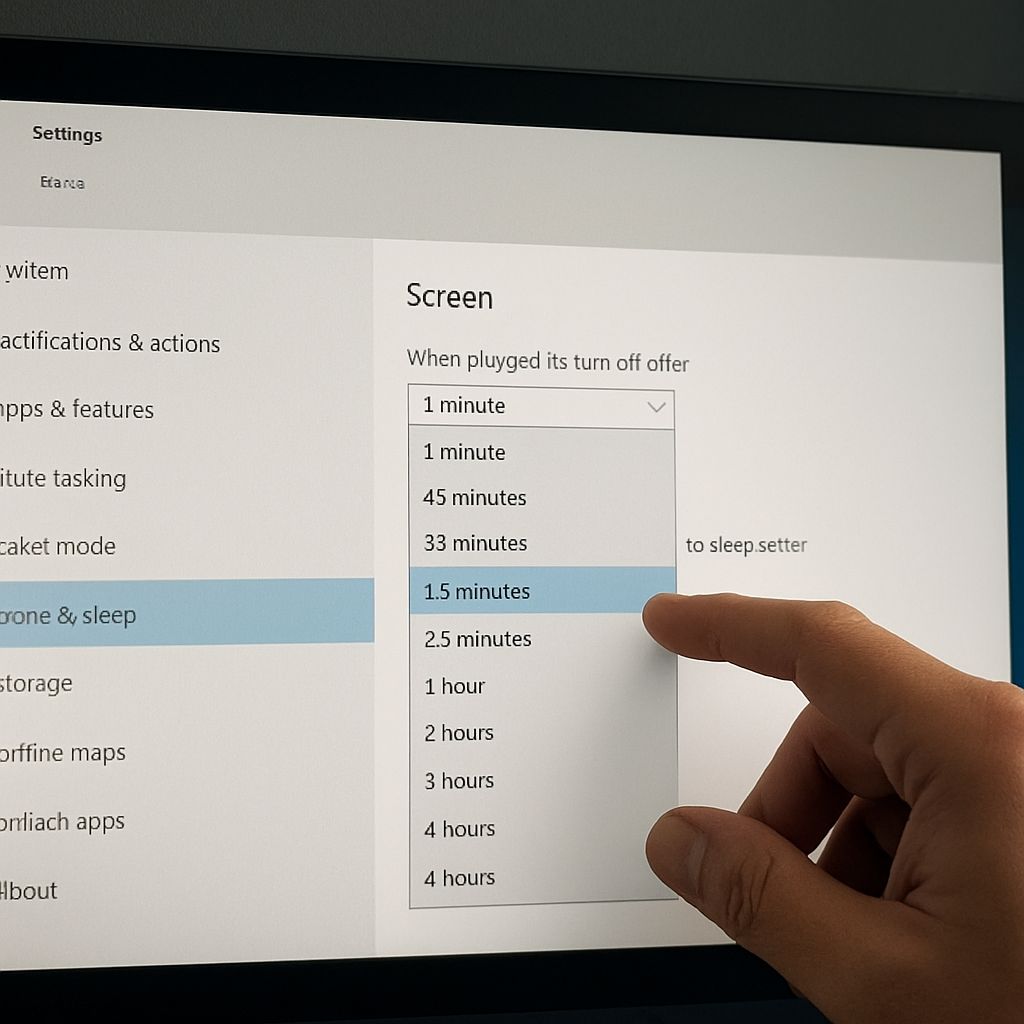
The fastest graphical path in Windows 10 or 11 is: Start Menu → Settings → System → Power and Sleep → Under “Sleep,” set both “On battery power” and “When plugged in” to “Never.” This change persists through restarts unless overridden by an administrator group policy. On managed work computers, this setting may be greyed out — in that case, the command-line method below bypasses the restriction.
The powercfg command gives precise control over sleep timers from the command prompt. Open Command Prompt as Administrator and run: powercfg /change standby-timeout-ac 0 to disable sleep when plugged in, and powercfg /change standby-timeout-dc 0 to disable it on battery. The value 0 means “never sleep.” These commands write directly to the active power plan and override most user-level settings conflicts.
For a session-only override without changing system settings, Windows includes a built-in tool called “caffeine” workarounds — but the native method is using the command: powercfg /requests to check what is preventing sleep, and powercfg /requestsoverride DRIVER "System" SYSTEM to suppress sleep requests from drivers. Third-party tools like Caffeine (a freeware utility) keep the computer awake by simulating a keypress every 59 seconds without touching system settings.
macOS: Energy Saver, caffeinate, and Display Sleep Separation
On macOS, the path is: Apple Menu → System Settings → Battery (or Energy Saver on older systems) → Set “Turn display off after” to “Never” and, importantly, check the option “Prevent automatic sleeping when display is off” if available. The display sleep and system sleep settings are separate on macOS — turning off display sleep does not prevent the system from sleeping on battery.
The caffeinate command in macOS Terminal provides granular session-level control without changing system preferences. Running caffeinate -d prevents display sleep; caffeinate -i prevents system idle sleep; and caffeinate -t 3600 keeps the system awake for exactly 3600 seconds (one hour) before reverting. This is the cleanest method for temporary overrides during long downloads or renders.
If a Mac is running on battery and system sleep cannot be disabled through System Settings due to battery optimization restrictions, the pmset command offers administrator-level override: sudo pmset -b sleep 0 disables battery sleep, and sudo pmset -c sleep 0 disables it when plugged in. These changes persist through restarts and require reverting with sudo pmset -b sleep 1 when normal power management is wanted again.
For both Windows and macOS, closing the laptop lid triggers a separate sleep policy from the screen timeout. On Windows, this is controlled in “Power and Sleep” under “Additional power settings → Choose what closing the lid does.” On macOS, preventing lid-close sleep requires either a connected external monitor or the third-party utility Amphetamine, as macOS does not natively support open-lid sleep prevention on battery.
Next steps: Identify whether the need is temporary (use caffeinate on Mac or a powercfg one-time command on Windows) or permanent (change the power plan settings using the graphical path). On managed computers, the command-line administrator methods override group policy restrictions for local sessions without affecting network policy enforcement.